
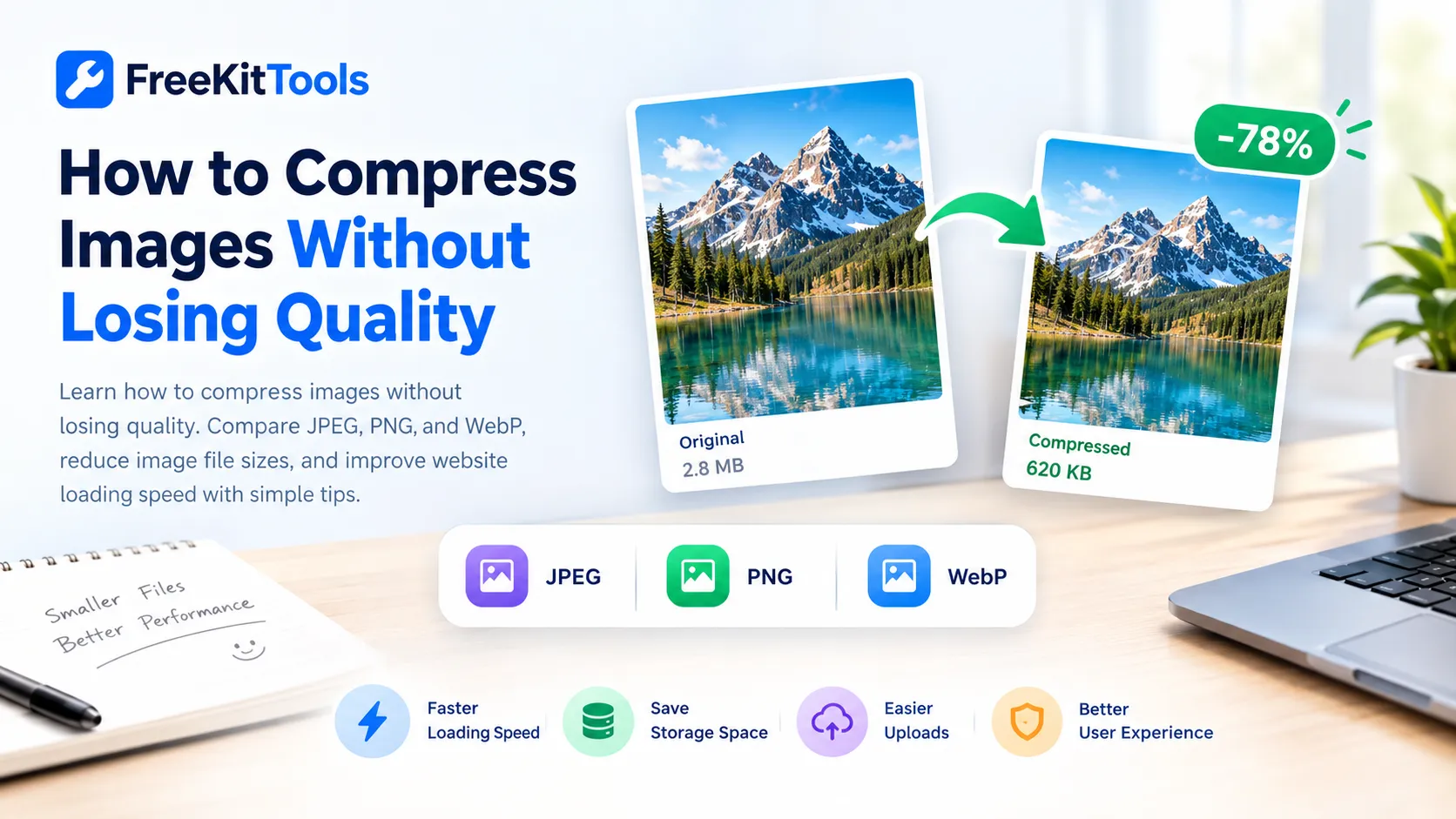
Large image files can slow down a website, take longer to upload, and use more mobile data. The good news is that you can often reduce image file sizes without a noticeable change in appearance. The key is choosing the right format, adjusting compression carefully, and using the correct image dimensions.
Whether you manage a website, run an online store, publish blog posts, or simply want to share photos, image compression can make everyday tasks easier. In this guide, you will learn how image compression works, which formats to choose, and how to reduce file sizes while keeping your images clear.
Quick answer: Use WebP or JPEG for most photographs, PNG when transparency or sharp graphic details matter, and a sensible quality setting when exporting. Resize oversized images before uploading them. Always compare the compressed result with the original before using it.What Is Image Compression?
Image compression reduces the amount of data needed to store an image. A compressed file takes up less space on your device or server and can be quicker to upload, download, and display on a webpage.
There are two main approaches. Lossless compression reduces file size without discarding image information. Lossy compression removes some information to achieve a smaller file. With a suitable quality setting, lossy compression can produce a much smaller image while keeping visual differences difficult to notice.
The best result depends on the image itself. A photograph, a transparent logo, and a screenshot have different needs. One setting will not work equally well for every image.
Why Image File Size Matters
Images often account for a large share of a webpage's total download size. When images are unnecessarily large, visitors may wait longer for pages to load, especially on mobile networks or older devices.
- Faster page loading: Smaller image files require less data to download.
- Better mobile experience: Visitors can access content with less waiting and data usage.
- Easier uploads: Compressed images are quicker to transfer and share.
- Less storage: Smaller files take up less space on devices and servers.
- Better website performance: Properly sized images can help improve loading metrics when images are a major part of the page.
Compression alone does not guarantee higher search rankings. Website performance also depends on hosting, caching, scripts, fonts, and other factors. However, serving appropriately sized images is a useful part of building a faster website.
JPEG vs PNG vs WebP: Which Format Should You Use?
Choosing the right format is one of the easiest ways to reduce image size. Each format works best for different types of content.
| Format | Best for | What to know |
|---|---|---|
| JPEG / JPG | Photographs, travel images, product photos | Lossy compression can produce small files, but repeated re-saving may reduce quality. |
| PNG | Logos, screenshots, diagrams, transparent graphics | Preserves sharp edges well, but photographs can be much larger than equivalent JPEG or WebP files. |
| WebP | Website images, product photos, many graphics | Supports lossy and lossless compression, as well as transparency. |
When should you choose JPEG?
JPEG is a practical choice for photographs and images with many colours. It is widely used and works well when you need a balance between file size and visual quality. Avoid repeatedly opening and saving the same JPEG at low quality because each lossy export can introduce additional degradation.
When is PNG a better option?
PNG is useful for transparent logos, interface elements, diagrams, and screenshots containing text or sharp lines. If a PNG photograph is unnecessarily large, try WebP or JPEG when transparency and pixel-perfect edges are not required.
Why consider WebP?
WebP can offer smaller files than older formats at comparable visual quality for many common images. It is a strong choice for websites, although the best result still depends on the image content and compression settings.
How to Compress Images Without Losing Noticeable Quality
Follow these steps to find a good balance between image clarity and file size.
Step 1: Start with the original image
Keep an untouched copy of your original file. This lets you compare results and return to the original if the compressed version looks blurry, blocky, or overly smooth.
Step 2: Resize the image when necessary
An image that is thousands of pixels wide may be larger than your website actually needs. If the displayed image is much smaller, reduce its dimensions to a suitable size before compressing it. Keep the aspect ratio locked unless you intentionally want to crop or stretch the image.
For example, do not upload a very large photograph for a small thumbnail unless your layout genuinely requires those dimensions. The right dimensions depend on the image's display size and the screen resolutions you want to accommodate.
Step 3: Select a suitable format
Try WebP for many website photographs, JPEG for common photo workflows, and PNG for graphics that need transparency or sharp details. If your image already uses an efficient format, converting it may not make it smaller.
Step 4: Adjust the quality setting gradually
With lossy compression, higher quality settings usually preserve more visual detail but produce larger files. Lower settings reduce file size further, but may introduce visible artefacts. Start with a moderate setting and compare the result before lowering it again.
Do not aim for the smallest possible file at any cost. A slightly larger image that looks clean is often a better choice than a tiny file with visible damage.
Step 5: Preview the compressed image
Inspect important details such as faces, product edges, text, shadows, gradients, and fine textures. Zoom in to check for artefacts, but also view the image at the size people will normally see it.
Step 6: Compare file size and appearance
Check the new file size against the original. If the visual improvement from a higher quality setting is hard to notice but the file becomes much larger, the lower setting may be the better option. Keep the version that meets your needs.
Compress Images Online with FreeKitTools
You can use the FreeKitTools Image Compressor to reduce image file sizes without installing desktop software. Upload your image, choose the available compression and quality options, preview the result, and download it when you are satisfied.
If the dimensions are also too large, use the FreeKitTools Image Resizer to set a more suitable width and height. Resizing and compression solve different problems, so combining them can help when an image is both oversized and unnecessarily detailed for its intended display size.
Always review the final output before publishing it. Different images respond differently to compression, so the best settings for one photograph may not be ideal for a logo or screenshot.
Common Image Compression Mistakes to Avoid
- Reducing quality too far: Excessive compression can create blocky textures, blurry details, and colour artefacts.
- Using the same format for every image: Photographs, transparent logos, and screenshots have different requirements.
- Uploading oversized dimensions: Compression does not always solve the extra download cost of unnecessarily large pixel dimensions.
- Compressing an already compressed image repeatedly: Multiple lossy exports can gradually reduce quality.
- Ignoring transparency: Converting a transparent image to a format that does not preserve transparency can replace transparent areas with a solid background.
- Checking only the file size: A smaller file is not a good result if it no longer looks right.
Extra Tips for Website Images
If you publish images regularly, make compression part of your normal upload process. Use dimensions that suit your page layout, choose a format that matches the image, and keep the original files somewhere safe if you may need them later.
- Use descriptive file names that explain the image.
- Write meaningful alternative text for images that convey information.
- Set image width and height attributes to help browsers reserve space while pages load.
- Use responsive image sizes when your website serves different screen sizes.
- Lazy-load images that appear below the initial visible area when appropriate, but avoid lazy-loading the main image that needs to appear immediately.
- Check image appearance on both desktop and mobile screens.
Remember that compression is only one part of website optimisation. Caching, efficient code, reliable hosting, and reducing unnecessary scripts can also affect loading speed.
Frequently Asked Questions
1. Can I compress an image without losing quality?
Yes, in many cases you can reduce file size without a noticeable visual difference. Lossless compression preserves the original image information, while carefully adjusted lossy compression can reduce size more substantially. The result depends on the image and the settings you choose.
2. Which image format gives the smallest file size?
There is no single format that always produces the smallest file. WebP can be efficient for many photographs and web graphics, JPEG works well for photos, and PNG is useful for transparency and sharp edges. Compare formats using the actual image you plan to publish.
3. Does compressing an image reduce its dimensions?
Not necessarily. Compression changes how image data is stored, while resizing changes the pixel dimensions. You may need to resize an image separately if its width and height are larger than necessary.
4. What image quality setting should I use?
There is no universal setting for every image or tool. Start with a moderate quality level, inspect the output, and adjust it based on the amount of detail you need to preserve. Photographs, text-heavy screenshots, and illustrations may need different settings.
5. Does image compression improve SEO?
Smaller, properly sized images can help a website load faster, which can improve the visitor experience and contribute to better page performance. SEO also depends on helpful content, accessibility, site structure, technical health, and many other factors.
6. Should I keep the original image after compression?
Yes. Keeping an original copy is useful if you later need a different size, a higher-quality export, or a different format. It also prevents you from relying on a compressed file if you need to make further edits.
Final Thoughts
Compressing images without losing noticeable quality is about making sensible choices rather than chasing the smallest possible file. Start with the right dimensions, choose a suitable format, adjust compression gradually, and check the final image before using it.
For a simple workflow, try the FreeKitTools Image Compressor to reduce file size and the Image Resizer when you also need different dimensions. A few careful checks can help you create lighter images while keeping your website and photos looking good.